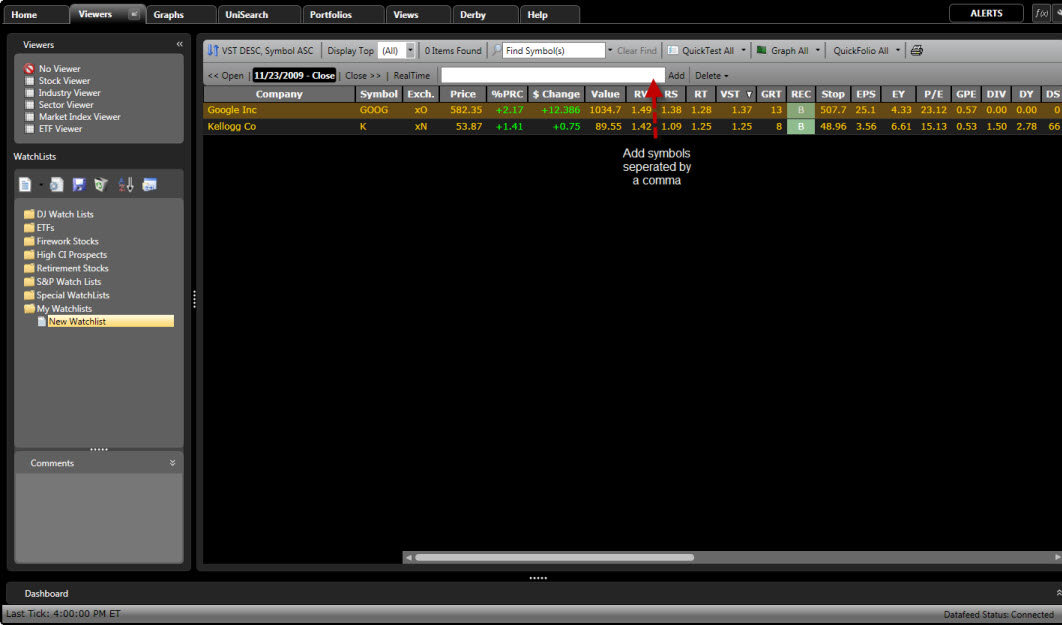
There are several convenient ways to add stocks to a WatchList. You may add stocks manually, use the right-click Options Menu, or drag and drop stocks from the Stock Viewer.
Adding Stocks to a WatchList Manually:
Select the "Viewers" tab.
Select the WatchList to which you wish to add stocks.
Type the ticker symbols, separated by a comma, into the Add Symbol(s) Window located on the Local Toolbar. If you do not know the symbol start typing the company name and select it from the list that appears.
Left-click "OK" or press the Enter key on your keyboard when finished.
Adding Stocks to a WatchList by Dragging and Dropping:
Select the "Viewers" tab.
Select the Stock Viewer or an existing WatchList.
Tag the stocks that you wish to add to a WatchList.
Hold down the left mouse button on any of the selected stocks.
Continue to hold down the left mouse button, while moving the mouse to the desired WatchList.
Release the left mouse button when the cursor is directly over the name of the WatchList to which the stocks will be added.
Adding Stocks to a WatchList using the Right-Click Options Menu:
Select the "Viewers" tab.
Select the Stock Viewer or an existing WatchList.
Tag the stocks that you wish to add to a WatchList.
Leave your cursor on any of the selected stocks, and right-click to view the Options Menu.
Left-click "Add to WatchList". The "Add to WatchList" window will appear.
Select the group that contains the WatchList to which you would like to add stocks.
Left-click the WatchList to which you would like to add the stocks. (To create a new WatchList, click the New Icon at the top of the "Add to Watchist" window, or right-click on an existing group and use the Options Menu to select "New WatchList".)
Left-click "OK".