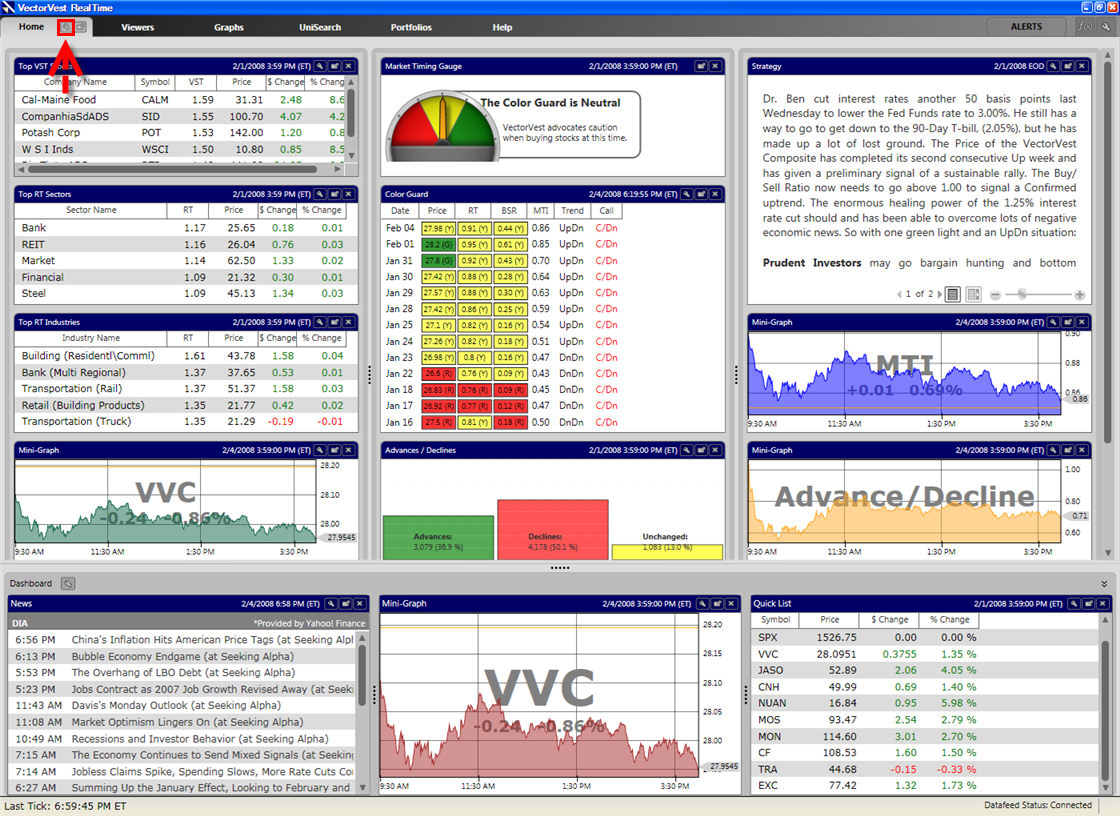
Adding New Gadgets to the HomePage:
New Gadgets may be selected by clicking the Settings Icon located to the right of the tab label.
The Gadget Selector will appear at the top of the screen, showing each available item. Placing your mouse directly over the gadget image will display a description of the gadget. Left-clicking on the Gadget will add the Gadget to the top left corner of the HomePage.
You may select the same Gadget multiple times. For example if you wanted to track the Top VST Stocks, the Top RT Sectors, and the Top RT Industries, you would need to select the Top Items Gadget three times, then customize each one.
Clicking on the Settings Icon again, will close the Gadget Selector. You can also close the Gadget selector by clicking anywhere on the HomePage.
There is no limit to the number of Gadgets you can add to the Homepage. If more Gadgets are added than can be viewed on the current screen, a scroll bar will appear on the right.