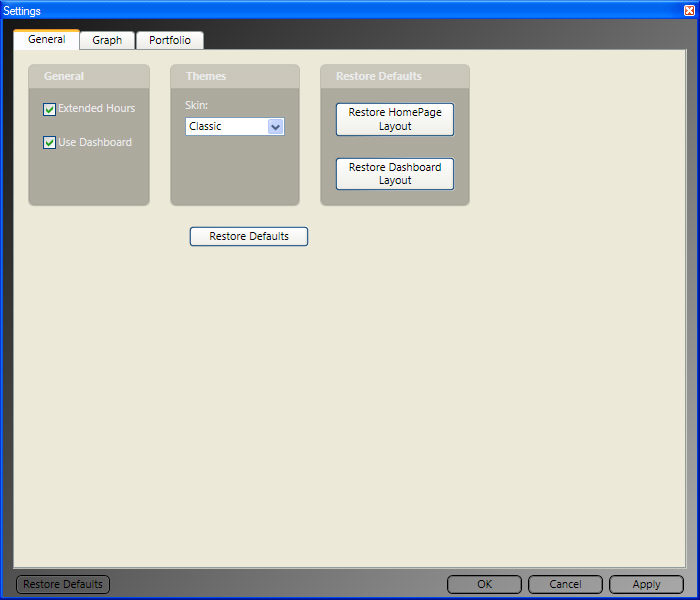
The General Settings Tab:
The General Settings Tab allows you to set the default selections used for themes, extended hours, and disabling the dashboard. This tab will also allow you to restore the HomePage and the Dashboard to the original VectorVest layout.
To access the General Settings Tab, first access the Program Settings Window by clicking the Settings Icon, located next to the Alerts Button, in the top right corner of the program. The Program Settings Window will open with the General Tab displayed. Click "Apply" to complete any changes.
Extended Hours: This option will display trading information that occurs prior to the market open (8:00 AM-9:30 AM ET), and after the market close (4:00 PM-6:30 PM ET). To display extended hours information, click the selection box next to Extended Hours. Uncheck the selection box to hide extended hours information. By default, the extended hours information will not be displayed.
Enable/Disable the Dashboard: This option allows the user to completely remove the Dashboard from the bottom of the screen. To disable the Dashboard, remove the check mark from the selection box next to Use Dashboard. By default, the dashboard will be displayed and may be hidden or minimized at any time by using the show/hide arrows, or clicking on the Dashboard Title Bar.
Changing Program Themes: Themes are color schemes that you can apply to VectorVest RealTime. Here, a general theme may be selected for use in the entire program. By default, the selected color scheme for the program is RealTime. This color scheme may be changed by using the drop down arrow next to the selection box to choose a different theme. The Classic theme uses a white display background, while the RealTime theme uses a black display background. Colors used for Graphs and Viewers may be customized independently using layouts. Selecting individual colors for Viewers or Graphs, will result in a Custom theme.
Restore the Default Theme: Clicking the Restore Defaults Button, located directly below the Theme selection box will restore the program theme to the original RealTime color scheme.
Restore the HomePage Layout: This button will restore the HomePage to the original VectorVest layout. Click "Restore HomePage Layout", then click "Yes" to confirm the change, or "No" to cancel.
Restore the Dashboard Layout: This button will restore the Dashboard to the original VectorVest layout. Click "Restore Dashboard Layout", then click "Yes" to confirm the change, or "No" to cancel. Rest