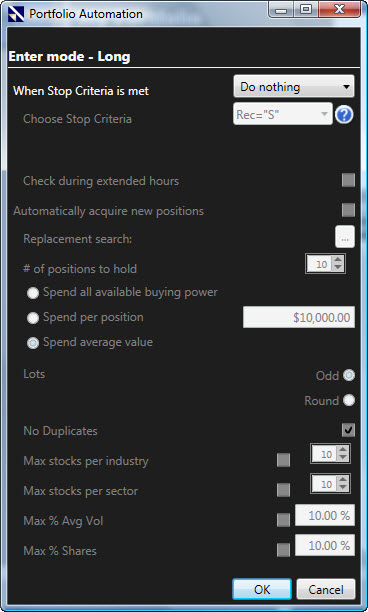
Edit Automation will allow you to set up the buying and/or selling rules and alerts that you would like to use for a portfolio. Any transactions will be executed automatically when Portfolio Automation has been enabled. Note: All portfolios are simulated. To execute an actual trade you must contact your broker.
Editing Portfolio Automation:
Select a portfolio. The selected portfolio will be highlighted on the left side.
Click the "Manage Portfolio" Button on the Local Toolbar.
Select "Edit Automation".
Make your selections. See below.
Click "OK".
To enable Portfolio Automation, please see Set Automation.
The Portfolio Automation Window:
When Stop Criteria is met: Do nothing, Send Alert, Close Position
Choose Stop Criteria: Use the drop down menu to choose your exit criteria. To view a definition of the stop criteria, select it from the list then click the question mark to the right of the selection box. This option will only be enabled if you have chosen Send Alert, or Close Position, when Stop Criteria is met.
Check during extended hours: Check the selection box if you would like to allow trading prior to 9:30 am or after 4:00 pm to trigger your stop criteria. This option will only be enabled if you have chosen Send Alert, or Close Position, when Stop Criteria is met.
Automatically acquire new positions: Check this box if you would like to have the program automatically replace closed positions. This option will only be enabled if you have chosen Send Alert, or Close Position, when Stop Criteria is met.
Replacement Search: Click the ellipses to choose the replacement search you would like to use. This option will only be active if Automatically acquire new positions is selected.
# of positions to hold: Select the optimal number of stocks you wish to maintain in your portfolio. This option will only be active if Automatically acquire new positions is selected.
Spend all available buying power: Select this option if you would like the entire amount of buying power used when purchasing positions (regardless of the number of stocks found by the selected search.) This option will only be active if Automatically acquire new positions is selected.
Spend per position: Select his option if you would like to specify the minimum and maximum dollar amount invested in new positions. This option will only be active if Automatically acquire new positions is selected.
Spend average value: This option will calculate the average value of the positions in your portfolio, and invest a similar amount into new positions. If the available buying power is more than the average value, the excess buying power will be reserved. This option will only be active if Automatically acquire new positions is selected.
Lots: Select Round if you would like to purchase in lots of 100 shares only, otherwise select Odd. This option will only be active if Automatically acquire new positions is selected.
No Duplicates: Click the selection box to prevent buying additional shares of an existing position. This option will only be active if Automatically acquire new positions is selected.
Max stocks per industry: Click the selection box to limit the number of positions in any one industry, then select the number you wish to choose. This option will only be active if Automatically acquire new positions is selected.
Max stocks per sector: Click the selection box to limit the number of positions in any one sector, then select the number you wish to choose. This option will only be active if Automatically acquire new positions is selected.
Max % Avg Vol: Click the selection box to place a limit the number of shares purchased to a maximum percentage of the average volume, then select the desired percentage. This option will only be active if Automatically acquire new positions is selected.
Max % Shares: Click the selection box to place a limit the number of shares purchased to a maximum percentage of the actual shares traded the day of purchase, then select the desired percentage. This option will only be active if Automatically acquire new positions is selected.