
The Date/Time Control is found throughout VectorVest RealTime, and allows you to select the date and time of the information displayed.
At some point, you may select a past date or time in Viewers, QuickTest, or UniSearch. This will stop the information from ticking in real time, but does not disconnect the datafeed. To bring the status back to RealTime, use the RealTime Button located on the Local Toolbar, or click here for more details about the program's connection status.
Selecting the Market Open or Close:
Clicking "<< Open" will change the time to 9:30 AM ET on the date shown, or 8:00 AM ET if extended hours have been enabled.
.
Clicking "Close >>" will change the time to the 4:00 PM ET on the date shown, or 8:00 PM ET if extended hours have been enabled.
Changing the Date:
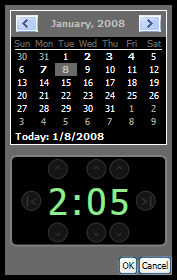
To change the date or time, access the calendar by left-clicking on the date and time shown. The calendar and time clock will appear
To change the year, left-click on the year shown at the top of the calendar, and select the year of your choice.
Intraday (minute-by-minute) data will be available for the five most recent trading days. Dates that have intraday data will be displayed on the calendar in bold. Selecting a date prior to this time period will display end of day data.
Changing the Time:
To change the time, access the time clock by left-clicking on the date and time shown. The calendar and time clock will appear.
Use the up and down arrow controls surrounding the clock to increase or decrease the hour and minutes displayed.
The I< clock control will automatically change the time to 9:30 AM ET, and the >I clock control will change the time to 4:00 PM ET. When extended hours have been enabled the market open will reflect 8:00 AM ET, and the market close will be displayed as 7:59 PM ET.
The time control is only available when viewing data from the last five trading days.