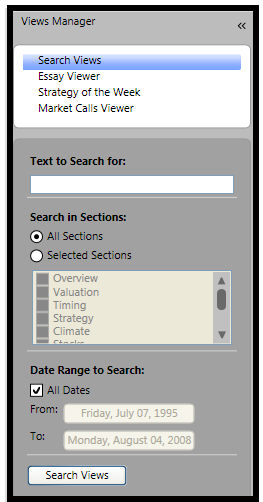
You may search any section of archived Views for a specific word or phrase.
To Search the VectorVest Views Archive:
Select the "Views" tab.
Click "Search Views" from the Views Manager.
Type the desired word or phrase in the "Text to Search for:" box.
You may choose to search "All Sections" of the Views or limit the search to "Selected Sections" such as the Overview or Strategy section.
If you wish to search the entire Views archive, leave the "All Dates" selection box checked. If you wish to search a specific date range, uncheck "All Dates", and select the date range using the "From" and "To" boxes.
Click the "Search Views" button. The chronological list of your search results will be shown below the button.
Click on the date of your choice to move directly to that data and section. If that is not the issue you desired, click on the next date in the "Search Results" box. Continue this process until you find the issue you desired.
Searching Within the Currently Displayed Document:

Click the Search Icon (magnifying glass).
Type the search word or phrase in the text box that appears.
Hit enter on the keyboard to begin the search. The search word or phrase will be highlighted on the screen.
Note: The left arrow will highlight the previous instance of the word or phrase, the right arrow will highlight the next instance of the word or phrase, and the down arrow will allow the user to match specifics such as matching the whole word, or case-sensitive matching.