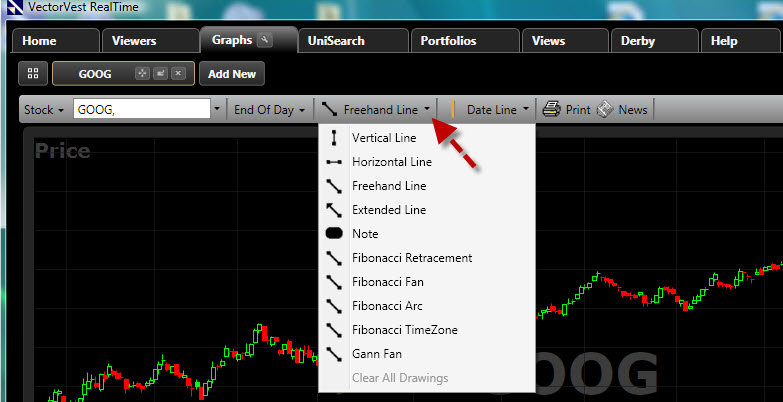
There are several drawing features available in VectorVest RealTime. All drawings will be automatically saved to the graph until deleted.
Line Types:
Vertical Line -Draws a vertical line on the graph.
Horizontal Line -Draws a horizontal line on the graph, commonly used to define support and resistance.
Freehand Line -Draws a line in any direction, commonly used to draw diagonal lines, or trend lines.
Extended Line -Draws a line in any direction, but continues that line into the future as time passes.
Selecting a Drawing Color:
Left-click the drop down arrow next to the Drawing Button
Select "Drawing Color..."
Click the color of choice on the Color Window.
Click "OK" on the Color Window.
Click the Drawing Button again, and select the line type or annotation.
Drawing Lines:
Left-click the drop down arrow next to the Drawing Button
Left-click on the line type.
Move your cursor to the desired beginning point for the line.
Hold down the left mouse button, while moving the mouse to desired end point for the line.
Release the left mouse button when the end point is reached.
The last drawing choice will be displayed on the Drawing Button. Left-click on the Drawing Button to use the drawing feature shown.
Adjusting Lines:
Left-click the drop down arrow next to the Drawing Button
Left-click "Drawing Selector".
Left-click any point on the line you wish to adjust.
Move the cursor to the axis (white dot on the line) and hold down the left mouse.
Move the mouse in the desired direction to extend the line, shorten the line, or change the slope.
Release the left mouse button when changes are complete.
Removing Lines:
Left-click the drop down arrow next to the Drawing Button
Left-click "Drawing Selector".
Right-click on the line you with to delete.
Left-click "Delete".
You may also use the Drawing Selector and right click menu to change the color of a line that has already been drawn. The last drawing choice will be displayed on the Drawing Button. Left-click on the Drawing Button to use the drawing feature shown.
Drawing Annotations:
Left-click the drop down arrow next to the Drawing Button
Left-click on "Annotation".
Move your cursor to the desired beginning point for the annotation.
Hold down the left mouse button, while moving the mouse diagonally to expand the annotation box.
Release the left mouse button when the annotation is the desired size.
Click inside the annotation until you see the cursor appear, then type your text.
Once the annotation has been drawn, you may right click on the annotation to change the color, or remove it completely. The last drawing choice will be displayed on the Drawing Button. Left-click on the Drawing Button to use the drawing feature shown.