Importing Symbols to a Watchlist
Many programs allow you to create a .csv file that can be imported directly into a RealTime WatchList. you may also wish to copy and paste a list of stocks to an Excel spreadsheet, such as the Yahoo! Earnings Calendar. This list can then be saved as a .csv file.
Creating a .CSV file using Excel:
If copying stocks from a website, first highlight the table of stocks to transfer.
Right-click on the high-lighted area and select "Copy".
Open a new Excel Spreadsheet.
Right-click in the first cell, and select "Paste". The stocks should be copied to the spreadsheet.
Left-click "File" on the Menu Bar.
Left-click "Save As".
Type a name for the file in the File name Text Box.
Left-click in the "Save as Type" box and select .CSV (Comma delimited)
Select the location the file will be saved to (Desktop recommended).
Left-click "Save".
Left-click "OK" on the message warning, "The selected file type does not support workbooks that contain multiple sheets".
Left-click "Yes" to confirm that you want to keep this format.
Close Excel, Left-click "No" when asked to save the changes.
Importing Symbols to a Watchlist from a .CSV file:
Select the "Viewers" tab.
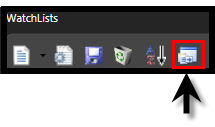
Left-click the Import Icon on the WatchList Directory Toolbar.
Select the location of the saved .csv file.
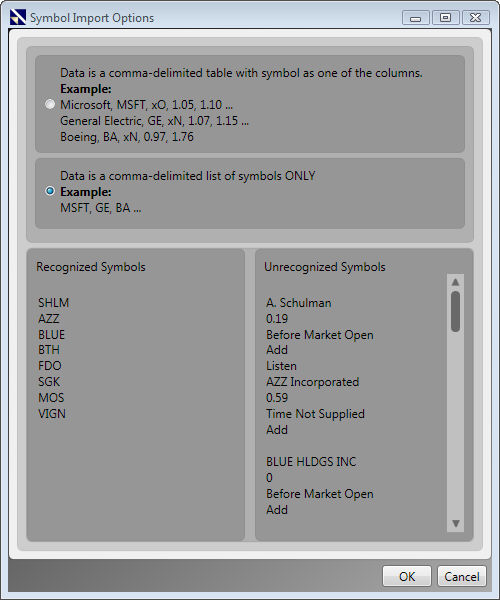
Double-click on the name of the .csv file. The "Symbol Import Options" window will appear.
Select the radio button next to "Data is a comma-delimited list of symbols ONLY".
The recognized symbols should be listed in the bottom left column.
Left-click "OK".